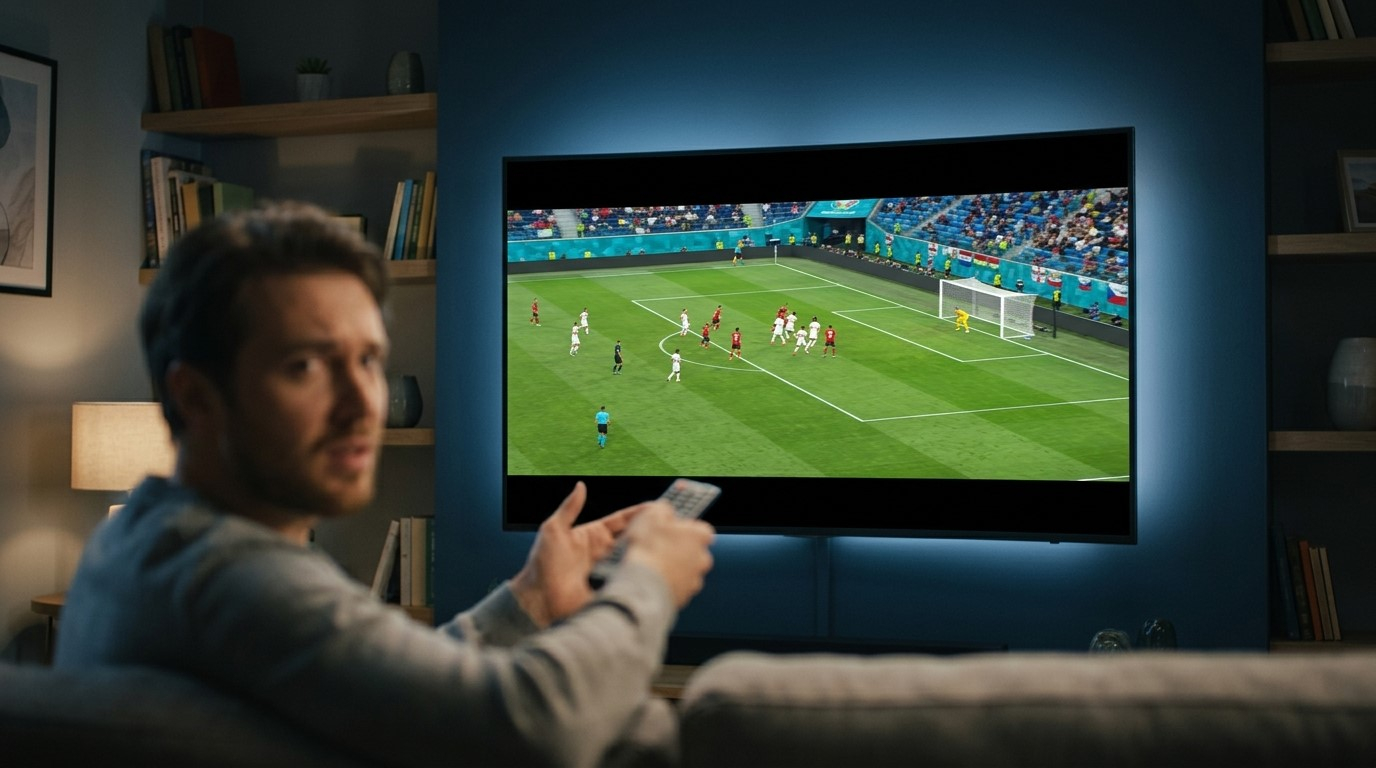
You settle in to watch your favorite channel and something looks off. Faces seem wider than they should be, the edges of the screen are cut off, or there are black bars where you don't expect them. It's a common problem, and it's almost always a settings issue rather than a fault with your service. In this guide, we'll explain why pictures get stretched or cropped and how to fix it, so your IPTV India channels look right on your Indian IPTV Box or any other device.
Table of Contents
- Understanding Aspect Ratio
- Why Pictures Look Stretched or Cropped
- TV Picture Size Settings
- Overscan and Cropped Edges
- Streaming Device and App Settings
- When the Channel Itself Is the Cause
- Step-by-Step Fix Checklist
- FAQs
Understanding Aspect Ratio
Aspect ratio is the shape of the picture, described as the width compared to the height. Two shapes matter most for TV viewing:
- 16:9 (widescreen) – The shape of modern TVs and most HD channels
- 4:3 (standard) – The squarer shape used by older television broadcasts and some older shows and channels
When the shape of the video doesn't match the shape of your screen, something has to give. The picture can be stretched to fill the space, cropped to fit it, or shown with black bars around it. Each of these is a different way of handling the mismatch, and your TV, streaming device, and app all get a say in which one you see.
Why Pictures Look Stretched or Cropped
The most common causes are:
- The TV's picture size setting is set to a mode that stretches or zooms the image
- Overscan is turned on, so the TV enlarges the picture slightly and cuts off the edges
- The streaming device's output settings don't match your TV's resolution or shape
- The app's display setting is forcing a particular aspect ratio
- The channel itself broadcasts in a different shape, such as 4:3 content on a widescreen TV
- A recent update or reset changed a setting without you noticing
Working out which of these applies to you is usually quick, because the pattern of the problem gives you clues.
TV Picture Size Settings
Most TVs have a picture size or aspect ratio menu, and the names vary by brand. Look for options like:
- 16:9, Wide, or Just Scan – Shows the picture in its natural widescreen shape without stretching or cropping it in most cases
- Original or Auto – Lets the TV follow the shape the signal reports
- 4:3 – Shows a squarer picture with black bars on the sides, which is correct for older content but wrong for widescreen video
- Zoom or Cinema – Enlarges the picture to remove black bars, which crops the top, bottom, or edges
- Stretch or Full – Pulls a 4:3 picture wide to fill the screen, which makes people look wider than they are
If everything looks stretched or zoomed regardless of the channel, try switching to a 16:9 or Auto option first. Many TVs also remember this setting separately for each input, so a change on one HDMI port won't apply to another.
Overscan and Cropped Edges
If your picture is the right shape but the edges seem cut off, such as missing channel logos, clipped subtitles, or menu text that runs off the screen, overscan is a likely cause.
Overscan is a feature left over from older TVs that zooms the picture in slightly to hide the edges of the signal. It's unnecessary with modern digital sources and can make menus and text look cropped.
To fix it, look in your TV's picture settings for options such as:
- Just Scan, Screen Fit, or Full Pixel
- Overscan with an on/off option
- Picture Size with an option that shows the full image without zooming
The exact wording depends on your TV brand and model, so check your TV's manual or settings menu if you can't find it. On some TVs the setting is only available when a particular input or mode is selected.
Streaming Device and App Settings
Your streaming device has its own display settings that can interfere with how the picture appears:
- Screen resolution or display mode – If your device outputs a resolution that doesn't match your TV, the picture may look stretched or shifted. Choosing Auto, or the highest resolution your TV supports, often solves this
- Screen calibration or display size – Some devices, including many Android-based streaming boxes, have a screen size or overscan adjustment that lets you shrink or expand the picture until it fits properly
- Aspect ratio option in the IPTV app – Many IPTV player apps have their own picture setting, with options such as fit, fill, stretch, zoom, or original. If your app is set to stretch or zoom, it can override your TV's setting
- Default app settings after an update – An app update can occasionally reset your preferred display mode
On your Indian IPTV Box, look in both the device's display settings and inside the app's playback menu. Setting the app to Fit or Original while your TV is set to 16:9 or Auto is usually the safest combination.
When the Channel Itself Is the Cause
Sometimes the problem isn't your setup at all:
- 4:3 channels on a widescreen TV – Older programming and some channels are broadcast in the squarer shape. On a widescreen TV, you'll see black bars on the left and right. That's normal, and stretching it to fill the screen distorts the picture
- Letterboxed movies – Wide cinema films often show black bars above and below the picture, even on a widescreen TV, because the film is wider than the screen
- Broadcast errors – Occasionally a channel sends the wrong shape information, which makes the picture look stretched or squeezed only on that channel
A helpful test: if only one channel looks wrong while others look fine, the source is probably responsible. If every channel looks wrong, the cause is probably your TV, device, or app settings.
Step-by-Step Fix Checklist
Work through these in order:
- Check more than one channel to see whether the problem affects everything or just one channel
- Set your TV's picture size to 16:9, Auto, or Just Scan and see if the picture corrects
- Turn off overscan or choose a Screen Fit option if the edges are cut off
- Check the aspect ratio setting in your IPTV app and choose Fit or Original
- Review your streaming device's display settings and set the resolution to Auto or the resolution your TV supports
- Look for a screen size or calibration adjustment on your device if the picture doesn't fill the screen properly
- Try a different HDMI port and see if the problem changes, since some TVs apply different settings to each input
- Check that your HDMI cable is properly seated, and try another cable if the picture behaves strangely
- Restart your TV and streaming device to clear any temporary glitch
- Update your app and device firmware in case a bug is causing the display issue
- Reset the TV's picture settings to default if none of the above works, then adjust again carefully
If you still can't fix it, note whether the issue affects other devices connected to the same TV. If it does, the cause is likely the TV. If it only affects your IPTV device, focus on that device's and the app's settings.
FAQs
1. Why does everyone look wider than normal on my TV?
Your TV or app is likely stretching a 4:3 picture to fill a widescreen display. Switch the picture size to 16:9, Auto, or Original, and set your IPTV app to Fit.
2. Why is the edge of my picture cut off?
This is usually overscan. Look for Just Scan, Screen Fit, or an overscan option in your TV's picture settings.
3. Why do I see black bars on the sides of some channels?
Those channels are broadcast in the older 4:3 shape. The black bars are normal and keep the picture from being distorted.
4. Can my Indian IPTV Box cause a stretched picture?
Yes, if its display resolution or aspect ratio setting doesn't match your TV. Set the output to Auto or your TV's native resolution and adjust the screen size setting if your box has one.
5. Will a different HDMI cable fix a stretched picture?
Rarely, but a poor or loose cable can cause other display problems. Check the cable if changing settings doesn't help.
Enjoy a Picture That Fits
Most stretched or cropped pictures are fixed in a few minutes with the right setting. Pair a reliable IPTV India subscription with a well-configured Indian IPTV Box and enjoy sharp, properly proportioned viewing on your TV. Explore our IPTV plans today and get the picture you've been looking for.