

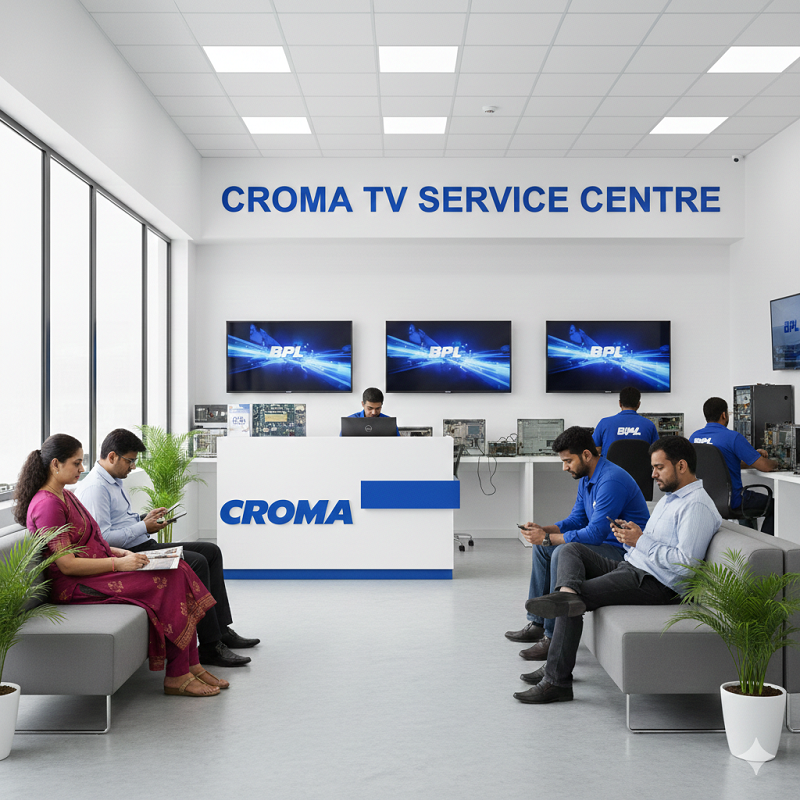
Can Croma TV Service Center repair picture interruptions caused by incompatible HDMI signal formats?
INTRODUCTION
Picture interruptions can make watching television difficult, especially when the screen repeatedly goes black, flickers, or displays a “No Signal” message while using an HDMI-connected device. The Croma TV Service Center can help investigate these symptoms and determine whether they are associated with incompatible HDMI signal formats, connection problems, device settings, or television hardware. HDMI sources such as gaming consoles, laptops, streaming players, and set-top boxes can use different resolutions, refresh rates, and colour formats. When connected devices cannot establish a stable, compatible signal, picture interruptions may occur. Understanding the possible causes helps you troubleshoot the connection and decide when professional assistance may be needed.
Understanding HDMI Signal Formats
HDMI carries digital video and audio between compatible electronic devices. However, not every HDMI source sends the same type of signal. Depending on the device and content, the output may use different resolutions, refresh rates, colour formats, colour depths, and high dynamic range settings.
For example, a gaming console may output a high-resolution signal at a high refresh rate, while an older set-top box may use a lower resolution. A laptop might automatically switch between display modes depending on the application or connected screen.
The television must support the incoming format for the picture to display correctly. If the source selects an unsupported mode or the connection cannot reliably carry the selected signal, the screen may flicker, lose the picture temporarily, or fail to display the source.
Compatibility depends on the specifications of the television, the HDMI input, the source device, and any equipment positioned between them. Therefore, picture interruptions should be investigated across the entire connection rather than attributed to the television alone.
Common Symptoms of HDMI Signal Incompatibility
HDMI signal incompatibility can produce several symptoms. One of the most noticeable is intermittent black-screen behaviour. The picture may disappear for a few seconds before returning, particularly when a device starts playback or switches between video formats.
Another symptom is repeated signal loss. The television may briefly display “No Signal” even though the connected device remains powered on. Some setups experience flickering, visual distortion, unexpected resolution changes, or a delay before the picture returns.
You may also notice that a television displays menus correctly but loses the picture when a movie begins or a game switches to a different display mode. This can happen when the source changes its output settings for particular content.
However, these symptoms do not prove that the signal format is incompatible. A damaged HDMI cable, loose connector, unstable external device, or faulty port can create similar behaviour.
Record when the interruption occurs, which HDMI input is being used, and whether the problem affects one source or several. These details can help narrow down the cause and make troubleshooting more effective.
How Resolution and Refresh Rate Affect HDMI Performance
Resolution determines the number of pixels used to form an image, while refresh rate describes how frequently the displayed image is updated. Both settings influence the signal transmitted from an external device to the television.
A connected source might support several output combinations, such as Full HD at different refresh rates or 4K at a supported refresh rate. The available options depend on the specifications of both devices and the HDMI connection.
If a source selects a mode that the television or a connected intermediary device does not support, the picture may not appear correctly. In other situations, the selected format may be supported, but an unsuitable or damaged cable can prevent reliable transmission.
To investigate, open the source device's display settings and select a resolution and refresh rate supported by your television. If the picture becomes stable after selecting a different mode, the original output configuration may have contributed to the interruption.
Avoid forcing an unsupported setting simply to obtain a higher resolution or refresh rate. Check the device manuals and television specifications before changing advanced video options.
Colour Formats, HDR, and HDMI Compatibility
HDMI signals also carry colour information. Depending on the source and television, this may involve different colour spaces, chroma formats, colour depths, and high dynamic range (HDR) settings.
Some devices automatically change these settings when switching from a menu to a video, starting a game, or playing HDR content. During the transition, the television may need to recognise the new signal and adjust its display accordingly.
If the television, source device, cable, or intermediary equipment does not support the selected combination, the picture may become unstable or fail to appear. A problem that occurs only when HDR content starts may therefore require a different investigation from one that affects every HDMI source.
Check whether the source offers an automatic video-format setting. If appropriate, test a supported standard output mode and compare the results. Change one setting at a time so you can identify which adjustment affects the behaviour.
Do not assume that HDR itself is defective. The problem may involve compatibility, signal transmission, or a device configuration that changes when the content begins.
Checking HDMI Cables and Connections
A reliable HDMI connection is essential for transmitting digital video. Even when two devices support compatible signal formats, a loose or damaged cable may interrupt the picture.
Inspect both ends of the HDMI cable and make sure the connectors are seated securely. Look for visible damage, bent connectors, or signs of wear. If possible, test a known-working cable that meets the requirements of your television and source device.
You can also try another supported HDMI input. If the problem occurs through a receiver, splitter, adapter, or soundbar, temporarily connect the source directly to the television. This helps determine whether the intermediary equipment contributes to the interruption.
For example, if a gaming console works correctly when connected directly but loses the picture through an AV receiver, investigate the receiver's supported video formats, configuration, and cable connections.
Always make connection changes carefully and follow the manufacturers' instructions. If the picture remains unstable after testing a suitable cable and direct connection, further diagnosis may be necessary.
Can Software or Firmware Cause Picture Interruptions?
Software can influence how televisions and connected devices identify inputs, select display modes, and manage video signals. An outdated firmware version, graphics driver, or source-device software may contribute to compatibility problems in some setups.
Check whether an official update is available for your Croma television model and the connected source. Follow the relevant instructions when installing updates, and avoid interrupting the process.
Restarting both devices may also help clear a temporary HDMI communication problem. After restarting, select the correct input and test the same content that previously caused the interruption.
If the problem began after a software update or after changing the source's display settings, note when the behaviour started. That information can help identify a possible connection between the change and the symptom.
A factory reset should not be the first troubleshooting step. It can remove saved preferences, network information, and application settings without resolving a damaged cable or incompatible intermediary device. Consider a reset only after simpler checks have failed and after reviewing the manufacturer's instructions.
How Professional Diagnostics Identify the Cause
When picture interruptions continue, professional diagnostics can help distinguish a signal-format issue from a physical connection fault or television hardware problem.
A technician may reproduce the symptom using the affected source, test another compatible device, compare the behaviour across available HDMI inputs, and examine whether changing the source's output mode improves stability. The connection path can also be checked for receivers, adapters, and other equipment that may affect compatibility.
If the issue occurs only with a particular source or video format, the investigation may focus on device settings and supported signal specifications. If several compatible devices experience interruptions across different inputs, further checks of the television's ports or internal circuitry may be appropriate.
The goal is to identify the cause before recommending a repair. Not every HDMI interruption requires hardware replacement, and changing components without proper testing may fail to resolve the problem.
Dial Service Centre can provide service guidance for television troubleshooting enquiries, subject to availability for the relevant model and location. When requesting assistance, explain the symptoms, source device, HDMI input, and troubleshooting steps already completed.
Croma TV Service Center in Mahim
The Croma TV Service Center in Mahim is a location-specific search phrase for viewers seeking help with picture interruptions involving HDMI signal formats. If your television repeatedly loses the picture while connected to a gaming console, laptop, streaming player, or set-top box, start by identifying the conditions that trigger the issue.
Note whether the interruption happens immediately after connecting the device, when playback begins, or when switching to HDR or a different resolution. Check the source's display settings and confirm that the selected output format is supported by the television.
Testing a compatible HDMI cable and another supported input may help identify a connection problem. If an AV receiver or adapter is involved, connect the source directly to the television temporarily to compare the results.
If the picture continues to disappear, record the exact error message and whether the audio remains active during the interruption. These details can help guide further diagnosis. Confirm service availability for your television model and area before arranging local assistance.
Croma TV Service Center in Taloja
The Croma TV Service Center in Taloja is a useful location-specific keyword for people seeking assistance with HDMI-related picture interruptions in Taloja. When the screen flickers, goes black, or repeatedly reports signal loss, the issue may involve incompatible output settings, an unstable cable, or communication between connected devices.
Begin by testing the source with a supported resolution and refresh rate. If the problem occurs only during HDR playback or when launching a game, review the relevant video-format settings. Check the HDMI cable for damage and try another compatible cable if one is available.
If your setup includes a receiver, splitter, or adapter, temporarily bypass it and connect the source directly to the television. This can help identify whether the additional equipment affects signal stability.
If several compatible devices produce the same symptoms, consider arranging a diagnostic assessment. Provide the television model, the affected HDMI input, the connected device, and the steps that reproduce the interruption. Verify current service availability in Taloja before requesting assistance.
Preventing Recurring HDMI Picture Interruptions
Although some format changes are normal, careful setup can help reduce avoidable interruptions. Use HDMI cables that meet the requirements of your devices, secure the connectors properly, and avoid unnecessary adapters in the signal path.
Check the supported resolution, refresh rate, and HDR capabilities of each component. When using an AV receiver or other intermediary equipment, confirm that every device supports the required signal format.
Keep television and source-device software updated through official channels. If a problem begins after changing the display configuration, return to a known-supported setting and test whether the interruption stops.
Make one adjustment at a time and repeat the same test. For instance, launch the same application or game after changing the resolution, then observe whether the picture remains stable. This approach helps identify the conditions associated with the issue without making multiple unrelated changes.
If interruptions continue across compatible devices and cables, professional diagnosis may be the most effective next step.
Conclusion
Picture interruptions caused by HDMI signal incompatibility can result from unsupported resolutions, refresh rates, colour formats, HDR settings, cable faults, or communication problems between connected devices. Checking output settings, testing a compatible HDMI cable, trying another input, and temporarily bypassing intermediary equipment are useful first steps.
If the problem persists, a systematic assessment can help determine whether the cause lies with the source device, connection, or television hardware. Record when the interruption occurs and which formats trigger it. This information can help establish the next appropriate troubleshooting step.
Frequently Asked Questions
1. Can incompatible HDMI formats make my Croma TV screen go black?
Yes. If the source sends a format that the television or an intermediary device does not support, the picture may disappear or fail to display. A faulty cable or connection can produce similar symptoms.
2. Why does my TV lose the picture when I start a game or movie?
The source may switch resolution, refresh rate, or HDR settings when playback begins. If the signal path cannot handle the selected format reliably, the television may temporarily lose the picture.
3. Can changing the HDMI cable fix picture interruptions?
Yes, if the original cable is damaged or unsuitable for the signal being transmitted. Test a compatible, known-working cable and check whether the problem continues.
4. Should I change the resolution on my connected device?
You can test a resolution and refresh rate supported by both the source device and television. Change one setting at a time and compare the results to determine whether the selected format contributes to the issue.
5. When should I seek professional assistance for HDMI problems?
Seek assistance if interruptions continue after checking the cable, testing another supported input, reviewing display settings, and connecting the source directly. Persistent problems across multiple devices may require further diagnosis.
Read Our Previous Blog------>Does Mi TV Service Center troubleshoot resolution changes when a connected device enters sleep mode?