

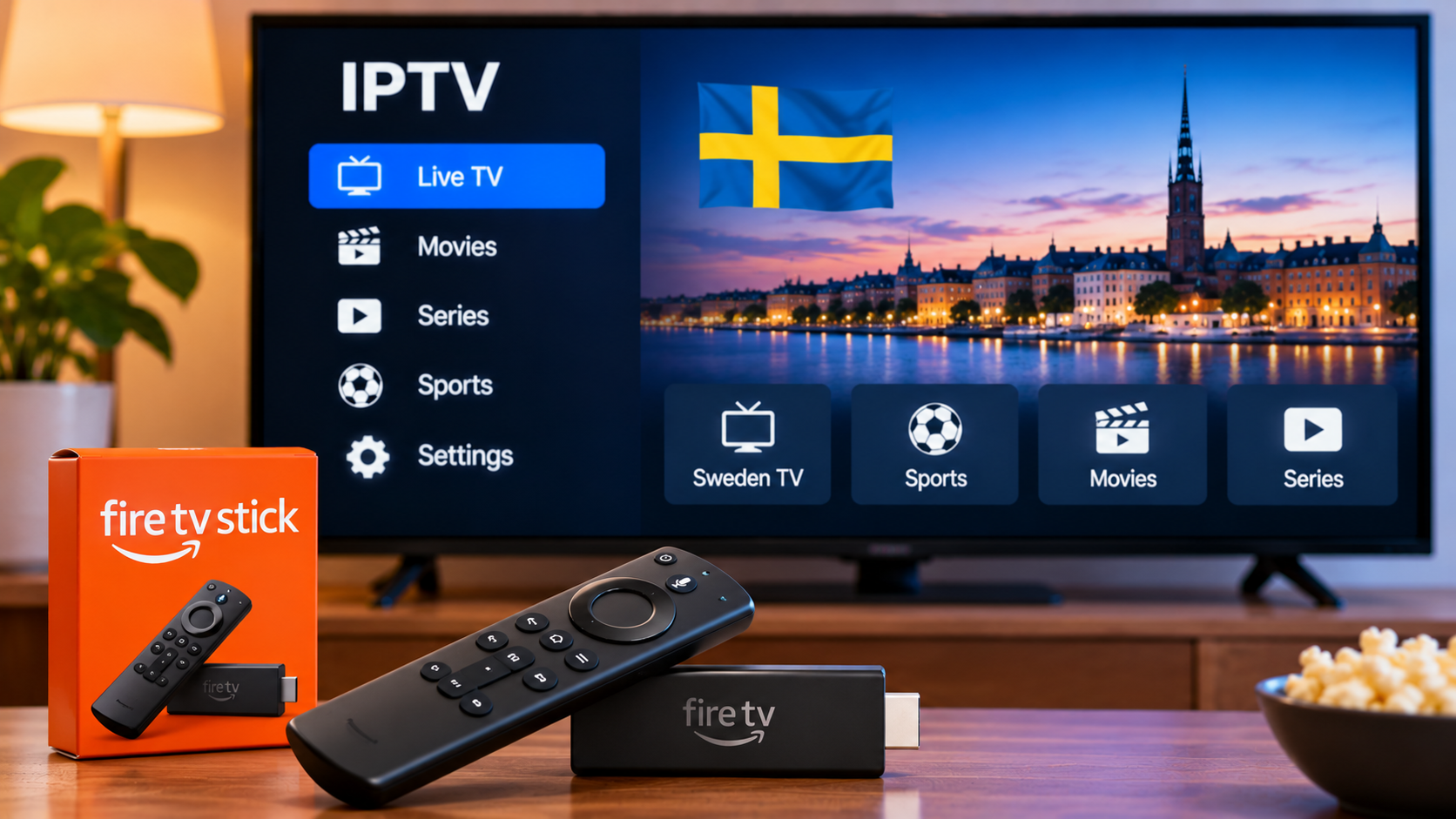
Amazon Fire TV Stick is a popular way to add streaming apps to televisions that may not have the software or performance needed for modern IPTV players. Instead of replacing an older television, users can connect a compact streaming stick through HDMI and manage their entertainment from one interface.
For IPTV viewers in Sweden, Fire TV Stick can be a practical option when the right application, internet connection, and account format are used.
This guide explains what to consider before setting up IPTV on Fire TV Stick and how to improve everyday streaming performance.
How IPTV Works on Fire TV Stick
IPTV delivers television content over an internet connection.
On Fire TV Stick, viewers normally use a compatible IPTV player that connects to subscription information provided by their service.
Depending on the application, common connection methods can include:
-
M3U playlists
-
Xtream-style credentials
-
Portal-based connections
-
Other supported playlist formats
The IPTV player itself generally acts as the interface. It organizes available live television, movies, series, and guide information when these features are supported.
Why Use a Fire TV Stick for IPTV?
A Fire TV Stick can be useful when a television has limited built-in app support.
Instead of depending on the TV manufacturer's application store, the streaming stick provides its own operating system and app environment.
Potential advantages include:
-
Simple HDMI connection
-
Compact hardware
-
Remote-control navigation
-
Access to streaming applications
-
Easy movement between compatible televisions
-
Independent software updates
The experience still depends on the specific Fire TV model and application being used.
Check Your Fire TV Model
Different Fire TV Stick models have different hardware capabilities.
Newer models may provide faster processors, additional memory, improved Wi-Fi support, or higher video resolutions.
Older models can still be suitable for basic streaming, but slow menus or application crashes may indicate hardware limitations.
Before changing IPTV providers or network settings, consider whether the streaming device itself is performing normally.
Choose a Compatible IPTV Player
The IPTV player has a major influence on navigation and usability.
A suitable player should support the login format supplied by the IPTV service and work properly with the Fire TV remote.
Useful features can include:
-
Live TV categories
-
Favorites
-
Search
-
Electronic Program Guide
-
Movie and series sections
-
Subtitle controls
-
Audio-track selection
-
Parental controls
-
Playlist updates
A complicated player with dozens of features is not necessarily better. For everyday use, clear menus and reliable remote navigation can be more valuable.
Installing IPTV Apps
Some compatible IPTV applications may be available directly through the Fire TV app store.
When possible, using official application stores is preferable because installation and updates are easier to manage.
Users should be cautious with unknown apps downloaded from unofficial websites. Modified applications may create privacy, security, or stability problems.
Before entering subscription details, make sure the application comes from a source you trust.
Using M3U Playlists
If the IPTV player supports M3U, users can normally enter a playlist URL supplied by their service.
The application then reads the playlist and organizes available content.
Because an M3U URL may contain account credentials, it should be kept private.
Avoid posting full playlist links in public forums, screenshots, or social media.
Using Xtream-Style Login
Many IPTV applications also support a username-and-password login format.
This commonly requires:
-
Server URL
-
Username
-
Password
For Fire TV users, this can be easier than manually entering a very long M3U link.
Once connected, the player may automatically separate live television, movies, and series when the service provides those categories.
Use the Fire TV Remote Efficiently
IPTV apps are often designed around television navigation.
The Fire TV remote can normally be used to:
-
Move between categories
-
Open channels
-
Return to previous menus
-
Search
-
Pause supported content
-
Open player settings
Some IPTV apps provide shortcuts for channel switching or favorites.
Learning these shortcuts can make daily viewing much faster.
Create a Favorites List
A large IPTV playlist can become difficult to navigate.
Favorites allow users to keep frequently watched channels in one place.
For a Swedish household, a favorites section might contain:
-
Swedish television
-
News
-
Sports
-
Family channels
-
Movies
-
Frequently watched international channels
Keeping the list reasonably short makes it more useful.
Use the Electronic Program Guide
An EPG can make live television easier to browse.
Instead of seeing only channel names, viewers may be able to check:
-
What is currently playing
-
Upcoming programs
-
Start and end times
-
Program descriptions
If guide times appear incorrect, check both the Fire TV timezone and any EPG offset settings inside the IPTV application.
Internet Stability Is Important
Fire TV Stick depends heavily on Wi-Fi unless an Ethernet adapter or another wired setup is used.
Buffering can occur when:
-
Wi-Fi is weak
-
The router is too far away
-
Several devices are heavily using the network
-
The internet connection is unstable
-
The Fire TV Stick is struggling with background tasks
A speed test can provide useful information, but consistent performance matters just as much as headline speed.
Improve Wi-Fi Around the Television
The television area may not receive the same Wi-Fi quality as the room where the router is located.
Walls, cabinets, furniture, and nearby electronics can affect signal strength.
Where possible:
-
Keep the router in an open position
-
Avoid placing it inside a closed cabinet
-
Reduce unnecessary distance
-
Test available Wi-Fi bands
-
Avoid placing networking equipment behind large objects
Small changes can sometimes produce noticeable improvements.
Consider Ethernet for a Fixed Setup
Although Fire TV Stick is commonly used over Wi-Fi, some users may prefer a wired network connection through compatible accessories.
Ethernet can reduce problems caused by wireless interference.
This may be useful for households that frequently watch live sports or other content where interruptions are especially noticeable.
A wired connection is not necessary for everyone, but it can improve consistency in certain setups.
Check Household Network Activity
IPTV shares the same home connection as phones, computers, game consoles, tablets, and other streaming devices.
Performance may decline if several people are simultaneously:
-
Downloading large files
-
Uploading cloud backups
-
Streaming high-resolution video
-
Playing online games
-
Joining video meetings
If IPTV only buffers during busy periods, household network congestion may be contributing to the issue.
Fire TV Stick for Swedish IPTV Viewers
Fire TV Stick can be useful for viewers who want a simple streaming interface on a television that does not already provide suitable IPTV applications.
People comparing subscription options, compatible devices, streaming information, and installation guidance for Sweden can also review Rapid IPTV Sweden when researching a setup that matches their household equipment.
The right combination of service, player, and network is more important than the streaming device alone.
Subtitles and Audio Tracks
Many IPTV players support alternative subtitle and audio options.
Depending on the stream, viewers may be able to choose:
-
Swedish subtitles
-
English subtitles
-
Alternative audio languages
-
Original-language audio
-
Other available tracks
The exact options depend on the source content and application.
If subtitles are missing on one program, test another before assuming the app is faulty.
Parental Controls
Families using Fire TV Stick may want to configure both IPTV-app restrictions and Fire TV's own parental settings.
Depending on the application, users may be able to:
-
Lock categories
-
Protect settings
-
Require a PIN
-
Hide selected sections
Device-level controls can provide an additional layer for app installations and purchases.
Keep Fire TV Software Updated
System updates can improve performance, security, and application compatibility.
Users should periodically check that Fire TV software and IPTV apps are reasonably current.
After major updates, test the IPTV player before relying on it for an important live event.
Updating early is better than discovering an unexpected interface or compatibility change just before a match starts.
Restart Instead of Immediately Reinstalling
If an IPTV player starts freezing or behaving strangely, reinstalling should not always be the first step.
Try:
-
Closing the application
-
Restarting Fire TV Stick
-
Checking the internet connection
-
Testing another stream
-
Refreshing the playlist
-
Checking for app updates
Reinstalling may remove favorites, settings, or saved login information.
Clear Unnecessary Applications
Limited storage can affect some streaming devices.
If Fire TV Stick is nearly full, removing apps that are no longer used can free space.
Keeping sufficient available storage can help with:
-
Application updates
-
Temporary files
-
Interface responsiveness
Users should avoid repeatedly installing multiple IPTV players unless they genuinely need them.
Fire TV Stick for Live Sports
For sports viewers, preparation is important.
Before an important event:
-
Open the IPTV player early
-
Test the intended channel
-
Check Wi-Fi performance
-
Restart the device if necessary
-
Close unused apps
-
Confirm EPG timing
-
Reduce unnecessary network downloads
These steps cannot guarantee that every stream will be perfect, but they can eliminate several avoidable local problems.
Fire TV Stick for Movies and Series
On-demand viewers may prioritize different features.
A good IPTV app should make it easy to:
-
Browse categories
-
Search titles
-
Navigate episodes
-
Use subtitles
-
Change audio tracks
-
Return to recently watched content
If movies and series are the main priority, choose a player with strong library navigation rather than focusing only on live-TV features.
Travelling With Fire TV Stick
The compact size of Fire TV Stick makes it easy to carry.
However, using it away from home may require:
-
An accessible HDMI port
-
Power
-
A reliable Wi-Fi connection
-
Permission to use the television input
-
Login access to the network
Hotel Wi-Fi can sometimes require a browser login, which may make setup more complicated.
Testing travel equipment before leaving home is a good idea.
Avoid Overcomplicating the Setup
Many IPTV problems become harder to solve because too many settings are changed at once.
A simple setup is easier to maintain.
Start with:
-
One compatible IPTV player
-
Correct login information
-
Stable Wi-Fi
-
A short favorites list
-
Proper timezone settings
Only change advanced playback options when there is a clear reason.
Final Thoughts
Fire TV Stick can provide a practical IPTV setup for Swedish viewers who want to add modern streaming capabilities to an existing television.
The best experience depends on choosing a compatible IPTV player, using the correct login method, maintaining a stable internet connection, and organizing channels in a way that fits everyday viewing habits.
Rather than focusing only on hardware specifications, users should test the complete setup. A responsive Fire TV Stick, reliable Wi-Fi, well-designed player, and properly configured favorites can make live TV, sports, movies, and series much easier to access from the living room.