

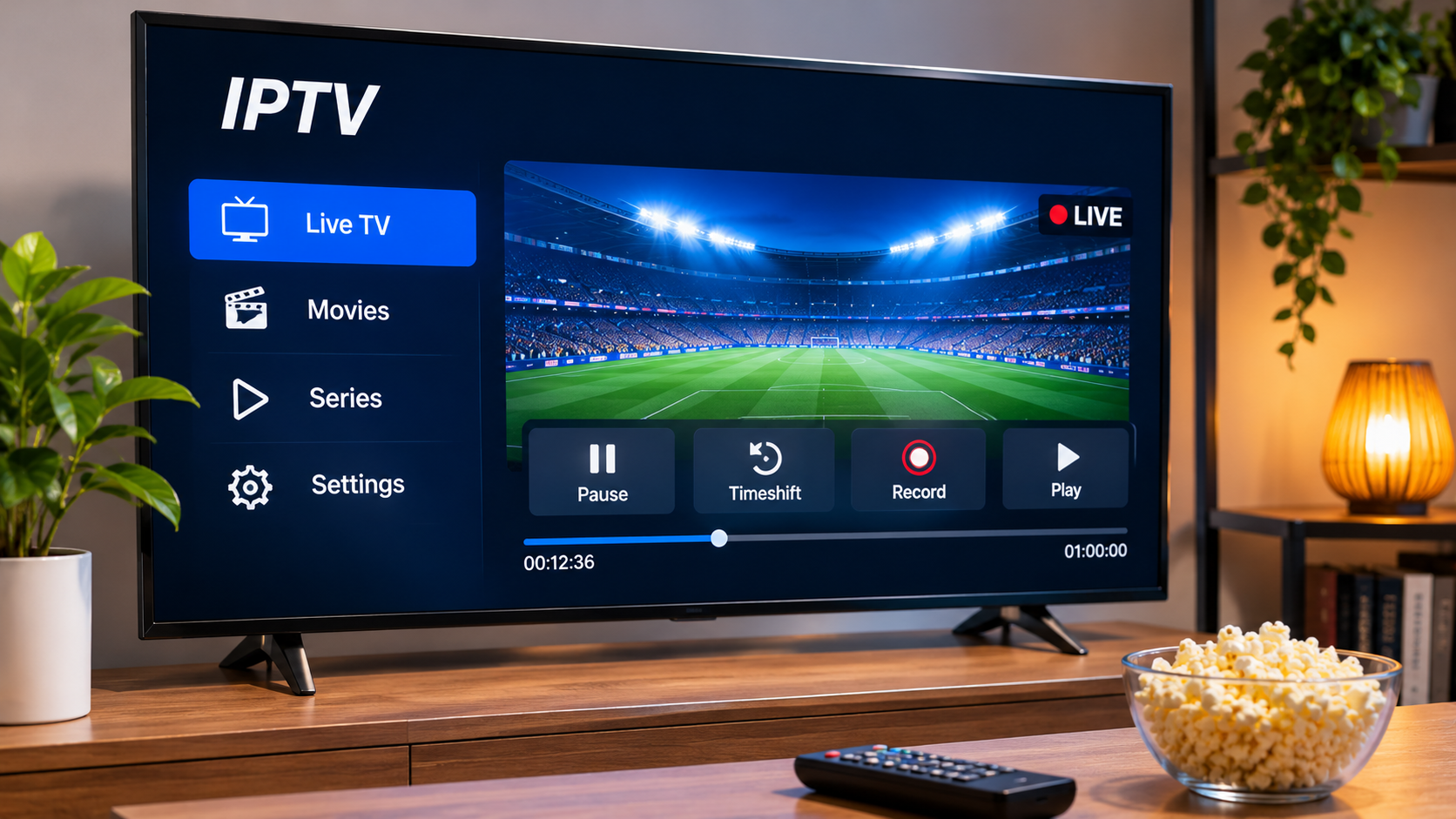

Watching live television does not always fit neatly around everyday schedules. A sports event may start while you are still at work, a programme may begin before dinner is finished, or you may simply want to pause a live broadcast for a few minutes.
This is where IPTV recording and timeshift features can be useful. They are related, but they are not the same thing. Their availability also depends on the IPTV service, player, device, storage method, and content rights involved.
Understanding the difference can help you choose a setup that suits the way you actually watch television.
What Is IPTV Recording?
IPTV recording allows compatible software or hardware to save a television stream so it can be watched later.
It works in a similar way to traditional digital video recording, although the exact process varies between applications.
A recording feature may allow you to save:
-
Live television programmes
-
Sports broadcasts
-
News
-
Scheduled shows
-
Other supported live content
Not every IPTV player includes recording, and some services may restrict it.
Before relying on the feature, check both the player documentation and the terms of the service you are using.
What Is Timeshift?
Timeshift is designed for live television.
Instead of permanently saving an entire programme, it temporarily buffers part of the live stream so that you can pause, rewind, and sometimes resume from an earlier point.
Imagine watching a live programme when the phone rings.
With timeshift enabled, you may be able to pause the stream, deal with the call, and continue from the same point afterward.
The television broadcast itself continues while your device keeps a temporary buffer.
Recording and Timeshift Are Not the Same
These two features are sometimes discussed together because both give viewers more control over live television.
The difference is fairly straightforward.
Recording is intended to save content for later viewing.
Timeshift is generally intended to provide temporary control over a live stream.
If you close the application or change channels, timeshift data may disappear depending on how the player works.
A recording, on the other hand, may remain available until it is deleted.
Your IPTV Player Matters
The player determines whether recording or timeshift controls are available.
Some IPTV applications focus mainly on simple playback. Others include more advanced television features.
When comparing players, look for options such as:
-
Record button
-
Scheduled recording
-
Timeshift controls
-
Pause live TV
-
Storage selection
-
Recording library
-
EPG integration
Do not assume a player supports recording simply because it can play live channels.
Check the current feature list for the specific version installed on your device.
Device Compatibility Can Change the Experience
Recording television on a computer is different from recording it on a Smart TV.
A Windows PC may have a large amount of storage available, while a television or small streaming box may have very limited internal space.
This affects how useful recording features can be.
For example, a device with only a small amount of free storage may technically support recording but quickly run out of space.
Before using the feature regularly, check where the player saves its files.
Storage Becomes Important Quickly
Video files can consume substantial storage.
Long programmes and higher-resolution streams generally require more space than short or lower-quality content.
If your device supports external storage, the player may allow recordings to be saved to:
-
USB drives
-
External hard drives
-
Network storage
-
Internal device storage
The available options depend entirely on the device and application.
It is worth testing a short recording first before planning to save several hours of television.
Recording on Android TV Devices
Some Android TV players offer recording or timeshift functions when suitable storage is available.
An external USB drive may be useful because many Android TV devices have relatively limited internal storage.
However, not every Android device handles external drives in the same way.
The operating system may need to recognize or format the storage before an IPTV player can use it.
Always check the application documentation before changing drive settings, particularly if the storage already contains important files.
Recording on a Windows Computer
A computer can be one of the easier devices for IPTV recording because it generally provides more storage and file-management options.
Depending on the player, recordings may be stored directly in a folder on the computer.
This makes it easier to see how much disk space is available and locate saved programmes later.
A PC can also be useful for testing whether a recording feature works before attempting the same setup on a more restricted device.
Smart TVs May Have More Limitations
Smart TVs are convenient because the IPTV player runs directly on the television.
Recording support, however, can vary considerably.
Some Smart TV applications may provide basic playback without recording. Others may have features that depend on the operating system or connected USB storage.
If recording is particularly important to you, check the capabilities of the specific IPTV player before choosing the television as the primary device.
People comparing Swedish IPTV subscriptions, device options, and player guides can also review FIRST CLASS IPTV when researching different IPTV setups.
How an EPG Can Help With Recording
An Electronic Program Guide can make scheduled recording much easier.
Instead of manually starting a recording when a programme begins, a compatible player may allow you to select the programme directly from the guide.
The application can then use the listed start and end times.
This type of setup can be convenient for regularly scheduled shows.
However, programme schedules can change, so an EPG entry is not always a guarantee that the broadcast will begin or end at exactly the expected time.
Scheduled Recording Needs the Device to Be Ready
A scheduled recording can only work if the required equipment is available when the programme starts.
Depending on the player, this may mean:
-
The device must remain powered on
-
The IPTV application must remain active
-
The internet connection must be available
-
Sufficient storage must remain free
A laptop that has gone into sleep mode, for example, may not behave the same way as a dedicated television recorder.
Test the feature before depending on it for something important.
Timeshift Depends on a Stable Connection
Timeshift does not remove the need for a reliable internet connection.
The player still has to receive the live television stream before it can temporarily buffer it.
If the original stream repeatedly drops, the timeshift buffer cannot magically reconstruct data that never arrived.
For this reason, persistent freezing should still be investigated as a connection, stream, or device issue.
Wi-Fi Can Affect Both Features
Recording and timeshift involve continuous video data.
A weak Wi-Fi signal can therefore create problems such as:
-
Gaps in recordings
-
Frozen playback
-
Failed recordings
-
Timeshift interruptions
If a stationary device supports Ethernet, a wired connection can be worth testing when Wi-Fi is unreliable.
There is no need to change the entire network if wireless streaming already works well.
The goal is simply to use a connection stable enough for uninterrupted playback.
Do Not Record Everything by Default
It is easy to underestimate how quickly recordings accumulate.
Saving several long programmes every week can eventually fill a drive, particularly when higher-quality streams are involved.
Occasionally check the recording folder and remove content you no longer need.
Some applications provide automatic management options, while others leave storage completely under the user's control.
Keeping some free space available can also help the device function normally.
Test With a Short Programme First
Before scheduling an important match or programme, make a short test recording.
Five or ten minutes can tell you quite a lot.
Check whether:
-
The recording actually starts
-
Audio is present
-
Video plays smoothly
-
The file is saved where expected
-
Seeking forward and backward works
-
Playback continues after reopening the application
A short test can expose configuration problems without wasting much time or storage.
What if the Recording Has No Sound?
Occasionally a saved recording may behave differently from the original live stream.
If the video plays but audio is missing, first try another short recording.
Then check whether the player offers audio-track options.
Different streams can use different audio formats, and compatibility may depend on the player and device.
Keeping the IPTV application updated can also help when the problem is related to software compatibility.
What if the Recording Stops Early?
An incomplete recording can have several causes.
The device may have run out of storage.
The internet connection might have dropped.
The player may have closed or the device may have entered sleep mode.
The stream itself could also have become unavailable temporarily.
Checking the recording length and available storage can provide the first clues.
If it happens repeatedly across several channels, test the same feature on another device or player.
Timeshift Is Useful for More Than Pausing
Pause is the most obvious advantage, but some players also allow limited rewind within the current buffer.
This can be useful if you missed a short part of a programme or want to see a moment again.
How far you can rewind depends on the buffer size and application.
Some players keep only a short period. Others may allow longer temporary playback history when enough storage is available.
Catch-Up TV Is a Different Feature
Timeshift is also different from catch-up television.
Timeshift usually works from the point at which your current viewing session began or from a limited rolling buffer.
Catch-up TV, where offered, allows previously broadcast programmes to be accessed after they have already finished.
Whether catch-up is available depends on the service and individual channel.
A player supporting timeshift does not automatically mean it provides catch-up content.
Keep Copyright and Service Rules in Mind
The technical ability to record a stream does not automatically mean every use is permitted.
Rules can depend on the content, service agreement, country, and intended use.
Recordings should be used in accordance with applicable law and the terms of the service providing the content.
This is particularly important when considering redistribution, public sharing, or commercial use.
When Recording Is Worth Using
Recording makes the most sense when you already know you will miss something.
For example, you might want to save a programme that begins during work hours or keep a scheduled show available for later in the evening.
Timeshift is more useful when you are already watching but need temporary control over the live broadcast.
Thinking about these two scenarios makes the difference between the features much easier to understand.
Do You Actually Need Recording?
Not everyone does.
If most of your viewing consists of on-demand films and series, recording may add little value.
For people who mainly watch live sports, news, or scheduled television, the feature can be much more useful.
Before choosing an IPTV player based on advanced recording capabilities, consider how often you would genuinely use them.
Sometimes a simpler player provides a better everyday experience.
Final Thoughts
IPTV recording and timeshift can make live television more flexible, but both features depend heavily on the player, device, storage, and network connection.
Recording is useful when you want to save a programme for later. Timeshift is better suited to pausing or briefly rewinding television that you are currently watching.
Before relying on either feature, test the setup with a short stream, check available storage, and confirm how your IPTV player handles saved or temporary data.
A little testing in advance can prevent missed recordings and help you decide whether these features are genuinely useful for the way you watch television.